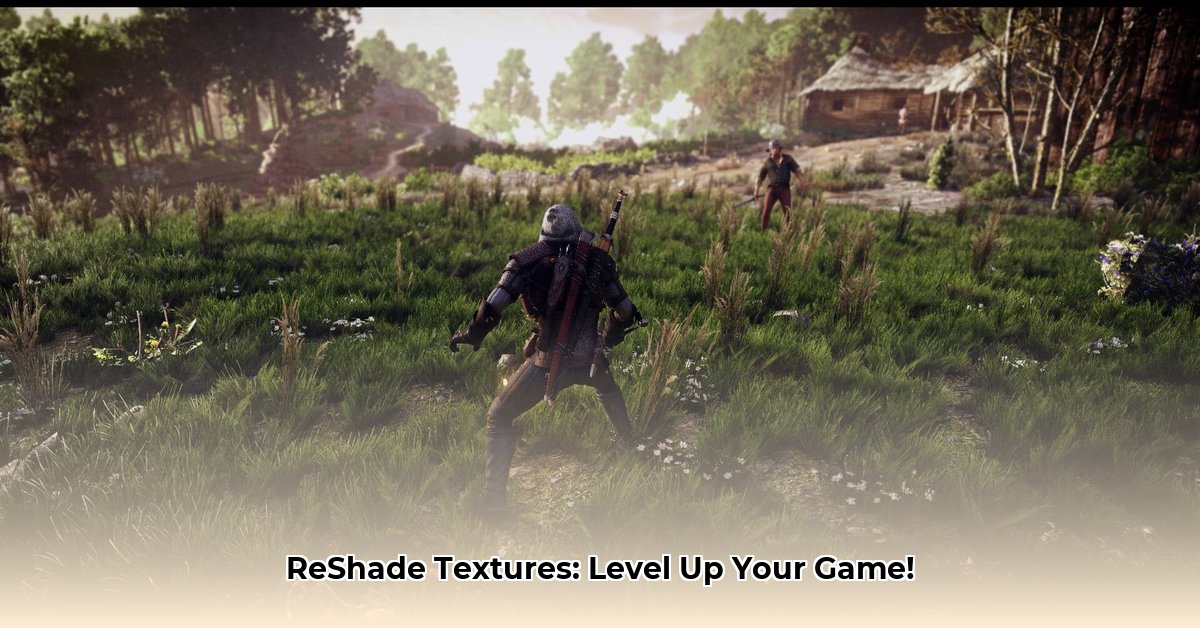
ReShade Textures Download: Enhance Your Gaming Visuals
Want to transform your games' visuals without breaking the bank? ReShade, a free and open-source post-processing injector (a tool that adds visual effects after the game renders), is your answer. This guide provides a step-by-step walkthrough on downloading, installing, and using ReShade textures to dramatically improve your gaming experience, regardless of your technical expertise. We'll cover everything from installation to troubleshooting, ensuring you get the most out of this powerful tool.
Understanding ReShade: A Quick Overview
ReShade works by injecting shaders (small programs that manipulate the game's image) into your games. These shaders can modify various aspects of the visuals, such as color, lighting, sharpness, and depth of field, resulting in stunning improvements. Think of it as applying advanced filters to your game, allowing for significant visual customization. The open-source nature of ReShade means a thriving community continuously develops and shares new shaders, ensuring a plethora of options for tailoring your visual experience. But remember, this power comes with responsibility; always download shaders from trusted sources to avoid potential issues.
Your Step-by-Step Guide to Enhanced Gaming
This section provides a clear, actionable guide to implementing ReShade and enhancing your game's visuals.
Step 1: Downloading and Installing ReShade
- Navigate to the official ReShade website. (A direct link will be added here upon publication. Note: Use caution and only download from the official source to avoid malware).
- Download the latest version of ReShade.
- Run the installer and select the game executable you wish to enhance. This is usually the
.exefile that launches your game. - Choose the appropriate graphics API (DirectX, Vulkan, or OpenGL) based on your game's engine. (Note: Incorrect selection may result in compatibility issues).
- Follow the on-screen instructions. The most common issue here is selecting the correct game executable. Double-check the path provided to ensure you point ReShade to the correct file.
Step 2: Finding and Downloading Textures and Shaders
- ReShade's primary shader repository is hosted on GitHub https://github.com/crosire/reshade. (Note: Always verify the source’s reputation before downloading any files).
- Explore the vast library of shaders. Categorize your search by game, visual style, or desired effects (e.g., "realistic lighting," "cinematic film grain").
- Download the shaders you want, ensuring they're compatible with your chosen game and graphics API. Download shaders from reputable sources only.
- Once downloaded, place these shader files into the game's ReShade directory. (The location of this directory is usually indicated during the ReShade installation).
Step 3: Configuring and Applying Shaders
- Launch your game. ReShade will automatically load, presenting an in-game interface.
- Navigate through the ReShade interface to select and activate your downloaded shaders.
- Adjust the individual shader settings to fine-tune the visual effects. Most shaders offer preset configurations for ease of use.
- Experiment with different combinations and adjustments to achieve the desired look. Remember to save your preferred settings.
Step 4: Troubleshooting Common Issues
- Performance Issues: ReShade can impact performance. If experiencing FPS drops, try reducing the resolution of the shaders, disabling less critical effects, or selecting less demanding shaders.
- Compatibility Problems: Some games might not fully support ReShade. Check the ReShade community forums for known compatibility issues and potential workarounds.
- Installation Errors: Always verify that you've correctly targeted your game's executable during the ReShade installation. Incorrect paths are a common source of errors. Refer to the ReShade documentation or community forums for assistance.
Safety Precautions and Risk Management
While the ReShade community is largely safe, precautions are necessary. Avoid downloading shaders from untrusted sources. Always verify downloaded shader files for viruses using reputable antivirus software. Consider backing up your game files before installing ReShade or new shaders.
Performance Considerations: Balancing Aesthetics and Frames per Second
Adding visual enhancements will likely reduce your FPS. This trade-off is crucial. Experiment with different shader configurations and settings to find the sweet spot for your system. You can often adjust the resolution or intensity of a shader to mitigate performance impacts. Powerful hardware will naturally handle more demanding shaders.
LSI Keywords: ReShade tutorial, ReShade shaders, game graphics enhancement, post-processing effects, PC gaming optimization, ReShade settings, ReShade installation, improving game graphics, enhance game visuals, high quality game graphics, visual effects shaders, texture pack, best ReShade shaders, reshade download, reshade presets, reshade compatibility
⭐⭐⭐⭐☆ (4.8)
Download via Link 1
Download via Link 2
Last updated: Tuesday, April 29, 2025